
Microsoft has quietly added a capability to Copilot that eliminates one of the most frustrating parts of document creation: finding the right image.
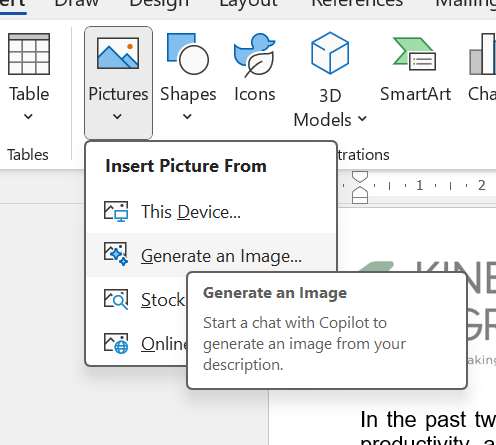
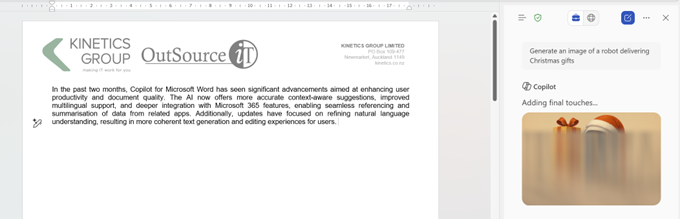
Instead of searching through stock photo libraries or hiring designers, you can now generate custom images directly within Word, PowerPoint, and the Microsoft 365 Copilot app—all from simple text descriptions.
How It Works
Copilot’s image generation uses OpenAI’s DALL-E 3 model, the same technology behind ChatGPT’s image creation. The process is straightforward: place your cursor where you want an image in Word or PowerPoint, open the Copilot pane from the ribbon, and describe what you need.
For example: “Create an image of a modern office with bright colored furniture, lots of natural light and exotic plants.” Within seconds, Copilot generates four variations. Select the one that works best, insert it into your document, and continue working.
The feature also creates custom banners. Ask for “a custom banner about spring sales for my floral shop, include lavender and sunflowers” and Copilot produces a professional header tailored to your specifications.
Where It’s Available
Image generation is currently available to Copilot Pro subscribers (the consumer/home license) and is rolling out to commercial Microsoft 365 Copilot users. The feature works across:
- Microsoft Word: Generate images and banners directly in documents
- PowerPoint: Create custom visuals for presentations
- Microsoft 365 Copilot Chat: Generate images that can be downloaded or inserted into any Office app
- Microsoft Designer app: Full image creation and editing capabilities
Free Microsoft account holders receive limited monthly “boosts” for image generation. Once boosts run out, generation continues but may queue behind paid users during peak times.
Business Applications That Actually Make Sense
Unlike generic stock photos that scream “stock photo,” AI-generated images can be specifically tailored to your content. Here are scenarios where this capability delivers genuine value:
Internal reports and documentation: Generate diagrams, flowcharts, or conceptual illustrations that exactly match your content rather than settling for “close enough” stock images.
Training materials: Create custom visuals showing specific scenarios, office layouts, or process flows that reflect your actual environment.
Presentations to internal audiences: Produce slides with images that precisely illustrate your points without the generic corporate aesthetic of stock photography.
Concept development: Quickly visualize ideas during brainstorming sessions—”What would a modern reception area with our brand colors look like?”
Marketing materials (with caveats): Generate initial concepts for posters, banners, or social media content. However, client-facing materials typically require professional design refinement.
What Works Well (and What Doesn’t)
Through testing, several patterns emerge about when AI image generation delivers value versus when it creates more work:
Works well:
- Conceptual illustrations and abstract ideas
- Simple scenes with clear focal points
- Diagrams and flowcarts with minimal text
- Mood boards and style explorations
- Internal documentation where “good enough” is genuinely sufficient
Less effective:
- Complex scenes with multiple specific elements
- Images requiring precise text rendering (logos, signage)
- Photos of real people (faces often look uncanny)
- Technical diagrams requiring exact specifications
- Anything representing real locations or products
Getting Better Results
The quality of generated images depends heavily on prompt specificity. Instead of “create an office image,” try “create a 1792×1024 image of a minimalist office reception area with white walls, natural wood furniture, and floor-to-ceiling windows showing a city view, photographed in soft morning light.”
Key prompt elements that improve results:
- Dimensions: Specify aspect ratio for presentations (16:9) or documents (4:3)
- Style: “watercolor,” “hand-drawn sketch,” “professional photograph,” “minimalist illustration”
- Lighting and mood: “soft natural light,” “dramatic shadows,” “bright and airy”
- Specific details: Colors, materials, perspective, time of day
You can also iterate. Generate four variations, select the closest match, then ask Copilot to “make the lighting warmer” or “remove the background elements.”
The Strategic Question: When Does This Actually Save Time?
For Kinetics clients evaluating whether Copilot Pro is worth implementing, the image generation feature matters most if you frequently create:
- Internal presentations requiring custom visuals
- Training documentation needing specific scenario illustrations
- Concept mockups for discussion purposes
- Reports where generic stock photos currently break the flow
It matters less if your documents primarily use photographs of real products, actual locations, specific people, or materials requiring legal review before publication.
The time savings aren’t about replacing professional design. They are about eliminating the friction of finding “good enough” visuals for internal work that doesn’t justify design resources but deserves better than generic clip art.
The Kinetics Perspective
At Kinetics, we evaluate technology features based on whether they solve actual workflow problems, not whether they’re impressive demonstrations. Copilot’s image generation solves a genuine friction point: the interruption of searching stock libraries when you just need a visual that illustrates your point adequately.
For teams creating substantial internal documentation, training materials, or concept presentations, this capability reduces the “I’ll come back and add an image later” problem that often results in image-free documents or generic stock photos inserted at the last minute.
Is it revolutionary? No. Does it eliminate the need for professional designers? Absolutely not. Does it remove a small but persistent source of friction from document creation? For the right use cases, yes.